Lock
Stops content edits, comments and suggestions.
Google Drive has a real file-lock command for Google Workspace, but it is easy to confuse that feature with sharing restrictions, download controls, folder access, or password encryption. This guide separates those controls so you can choose the right protection for the file you actually need to secure.
To lock a Google Drive file from editing in Google Workspace, right-click the file in Drive, choose File information, choose Lock, and confirm. A locked file cannot be edited, commented on, or receive suggestions until it is unlocked. You need edit access to apply the lock.
A Drive lock is not a password and is not encryption. If your goal is to hide the file from people who should not see it, change sharing permissions. If your goal is to keep the cloud provider from seeing readable file contents, encrypt the file before it reaches cloud storage or use an eligible client-side encryption setup. If you instead want a second password gate around the locally synced Google Drive folder on a Windows PC, a desktop access-control tool such as Cloud Secure addresses that separate device-level problem.
“Lock” in Drive means a content restriction. It freezes the file's editable state so collaborators cannot change the title or contents, add comments or suggestions, or upload a new revision while the restriction remains active. The lock is useful for a final draft, an approval cycle, an audit snapshot, or any moment when the group should stop changing the file.
The important boundary is that a content lock does not remove a collaborator's underlying access. Someone who still has broad permissions may retain other capabilities allowed by that role, including certain sharing or organizational actions. That is why a secure setup often combines a content lock with carefully chosen viewer/editor roles and, for sensitive material, encryption.
Stops content edits, comments and suggestions.
Controls who can view, comment, edit or share.
Controls whether stored content is readable without your key.
The fastest method depends on your account, your access role, and what you mean by “locked.” Check these four points before changing anything.
The most common security mistake is treating every control as if it protects the same thing. These four controls solve different problems.
Pick the result you want. The guide will point you to the relevant control.
Use this native method when the file is ready for review, approval, publishing or archival and you want collaborators to stop changing its content.
Sign in to the Workspace account that has edit access to the file.
Right-click the target file in Google Drive.
Open File information, then choose Lock.
Confirm the action. Drive now prevents edits, comments and suggestions until the file is unlocked.
Google's Workspace release note documents the direct flow as right-click → File information → Lock and says you must have edit access. See the official release note.
Use the buttons to rehearse the sequence before you change a live file.

If you do not have the Lock command, or if you want a long-term permission change instead of a temporary content freeze, change the collaborator's role from Editor to Viewer or Commenter. This is the better choice when the person should no longer have editing rights at all.
For a file shared as Viewer or Commenter, Drive can hide the options to download, print and copy. This is useful when you want someone to read a document inside Google's interface without making it easy to take a local copy.
Do not treat that switch as digital rights management. Someone who can see sensitive information may still be able to capture it by other means, and editors generally require broader capabilities. Use this control to reduce casual copying, not as the only protection for high-value confidential data.
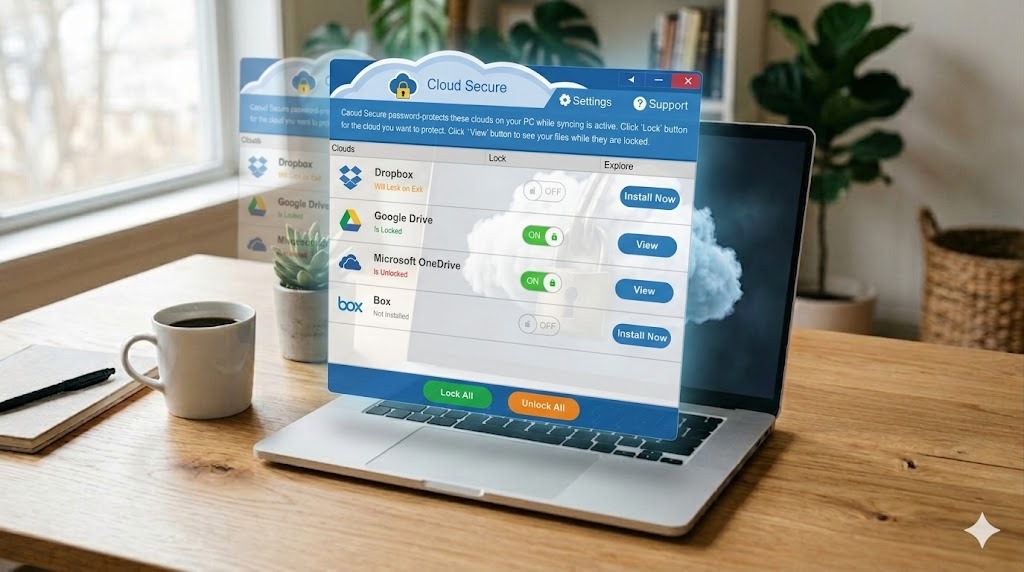
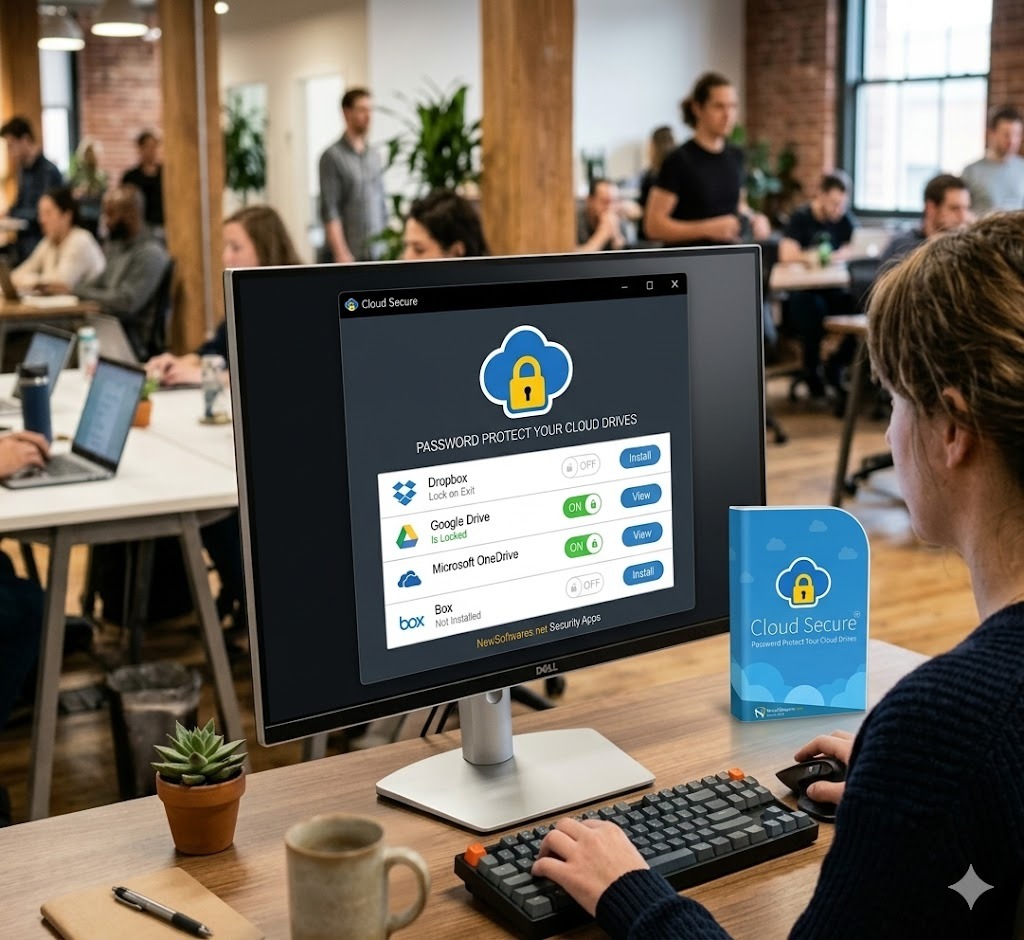
Use Drive in a desktop browser for Google's native file lock. If the risk is another person opening the synced Drive folder on the same PC, Cloud Secure adds a separate local password boundary. Its desktop documentation covers Windows 11, 10, 8 and 7, plus several Windows Server editions.
Native lock + local PC optionUse Drive in a desktop browser for Google's native content lock. Desktop third-party encryption options differ by product support.
Direct web lockGoogle documents mobile locking through the file approval workflow. For the simplest direct content-lock control, use Drive on the web.
Approval workflowGoogle documents mobile locking as part of approvals. The browser/desktop flow remains the clearest way to apply a direct Drive lock.
Approval workflow
Google Drive's native file lock does not add a separate password to the file. If “lock with password” is your real requirement, use client-side or pre-upload encryption: encrypt the file on your computer first, then upload the encrypted result to Drive.
A common no-cost approach is to create an encrypted archive using a reputable local archiving tool, choose a strong unique password, and upload only the encrypted archive. This changes the workflow: collaborators must download and decrypt the archive before editing, so it is best for private storage or controlled exchange, not live co-editing.
{
  "contentRestrictions": [
    {
      "readOnly": true,
      "reason": "Final version - editing paused"
    }
  ]
}
Developer note: the Drive API exposes contentRestrictions.readOnly for programmatic content locking. OAuth permissions and file capabilities still determine whether the request can succeed.
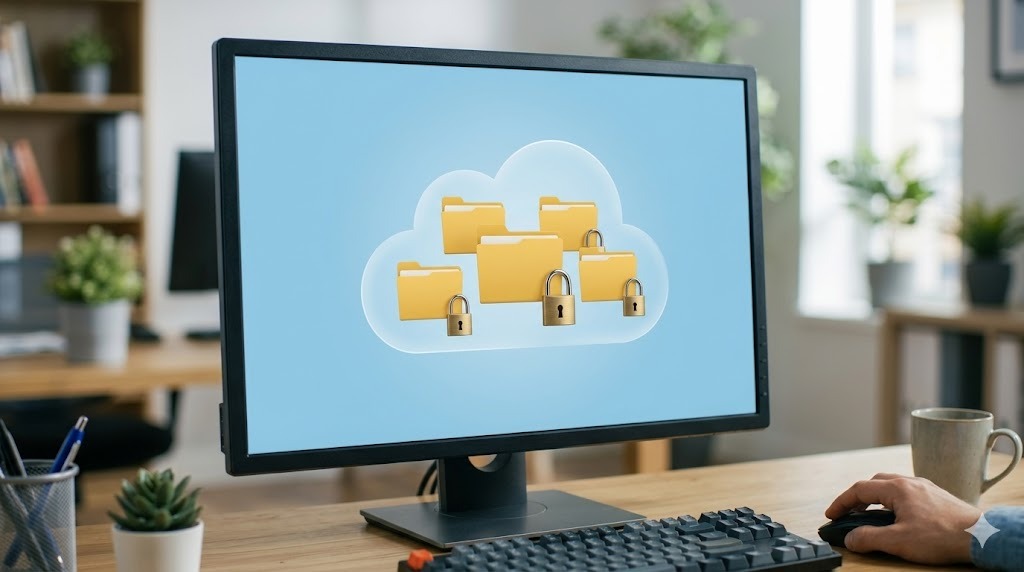
Sometimes “lock Google Drive” does not mean freezing one cloud file or encrypting its contents. It means stopping another person who can use the same Windows computer from opening the locally synchronized Drive folder while your Google account is already signed in. Cloud Secure is designed for that device-level scenario.
The desktop application places a separate password-controlled access layer in front of supported local cloud folders. Its product material covers Google Drive alongside Dropbox, OneDrive and Box. When protection is active, the ordinary local route to the protected cloud folder is blocked; the authorized user opens the folder through Cloud Secure's protected access path instead.
Install Cloud Secure on the Windows computer and create the password that will control access to the application's protected cloud area. Use a strong password that is not reused for the Google account itself.
Cloud Secure is built to recognize supported desktop sync services already present on the computer. Select the Google Drive installation you want to protect.
Enable protection for the Drive folder. The goal is to prevent ordinary local browsing of that synced location by someone sharing the PC.
Authorized access is provided through the Cloud Secure interface rather than through the folder's normal Windows location while protection is active.
The product is designed so background cloud synchronization can continue while local access remains protected, avoiding the need to expose the folder merely to let the sync client update it.
Cloud Secure is the more direct match when the problem is local access to an already-synced Google Drive folder on a Windows PC. Folder Lock is the stronger match when the goal is to place sensitive files inside an encrypted locker before or while they are synchronized. Neither tool changes who Google Drive itself allows to view or edit a shared cloud file.
Do not stop at the confirmation dialog. Verify the outcome from the perspective of the people whose actions you are trying to control.
0 of 7 completed. Your checks stay in this browser session only.
| Problem | Likely cause | Owner-safe fix |
|---|---|---|
| Lock is missing | Account, interface, role or file capability does not expose direct locking. | Try Drive on the web with the Workspace account that has edit access. If unavailable, use role changes to make the file read-only. |
| Lock option is disabled | You do not have sufficient rights or the item has a restriction you cannot modify. | Ask the owner or Workspace administrator to verify your role and the file's content-restriction capability. |
| People can still view the file | Lock does not revoke access. | Open Share and remove or downgrade people who should no longer see the file. |
| A recipient can still download | The recipient may have Editor access or download restrictions were not applied to the relevant role. | Review the role and Share settings. Test as a Viewer/Commenter. |
| Password-protected file cannot be opened | Password/key is wrong, lost or the local decrypting tool is unavailable. | Use your saved recovery material, password manager, backup copy or the tool vendor's legitimate recovery process. Do not attempt bypass techniques. |
| Drive desktop sync reports a file lock | A local application may have the synced file open or a sync process is waiting on a local filesystem lock. | Close the local application, let sync complete, restart Drive for desktop if necessary, and avoid editing the same binary file in multiple local apps. |
| Former employee still has access | Offboarding did not remove direct, group or inherited sharing. | Remove the account from the file, relevant groups and shared-drive membership, then review Drive audit events if your edition supports them. |
| Cloud Secure protection is on but Drive still syncs | This can be expected behavior. The desktop product is designed to keep the local access gate active while the sync client continues working in the background. | Judge the protection by whether an unauthorized Windows user can open the local Drive folder, not by whether synchronization stops. |
| Cloud Secure does not show the expected Drive client | The supported local sync client may not be installed or detected correctly. | Confirm the desktop Google Drive client is installed on the PC, then reopen Cloud Secure and review its detected-service setup. Avoid adding unsupported cloud services by workaround. |
| Forgot the Cloud Secure protection password | Recovery depends on registration status and whether the product's recovery option was enabled. | Use your legitimate registration information and the vendor's documented recovery/support route. Do not attempt to bypass the local protection or alter protected files directly. |
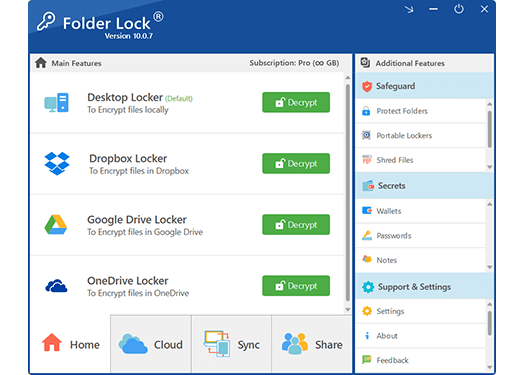
Native Drive controls are excellent for collaboration governance. They do not create a separate password-encrypted copy of your data. For Windows users who want local encryption plus Google Drive syncing, we recommend Folder Lock 10 because its Google Drive Locker is designed to encrypt files while keeping a cloud-sync workflow.
It is not the right answer for every case. If you only want to stop a teammate editing a final Google Doc, Google's native Lock is simpler and free. If you need live browser co-editing on plaintext content, pre-upload encryption changes that workflow. Folder Lock is most useful when confidentiality matters more than frictionless native editing.
Use Drive Lock so editors cannot accidentally change the approved wording.
Use Viewer access, consider download/print/copy restrictions, and remove the link when the review ends.
Encrypt before upload when readable cloud contents create unacceptable exposure.
Keep it unlocked while editing is active, then lock the milestone version for review.
Revoke direct and group access first. A file lock alone does not remove access.
Encrypt files in a locker designed to sync through Google Drive rather than relying only on Drive's access permissions.
Files stored in the encrypted locker are protected at the local encryption layer before cloud synchronization.
The current free tier lists two sync devices, while Pro lists five, which can fit users working across several endpoints.
Pro adds sharing capabilities intended for authorized users who should open encrypted files with their own credentials.
Folder Lock also includes local locking and hiding features, useful when the threat is another user of the same Windows PC.
The free version is useful for testing the workflow before deciding whether larger lockers or broader sharing justify the paid plan.

| Method | Difficulty | Security | Cost | Best for | Limitation |
|---|---|---|---|---|---|
| Drive Lock | Easy | Content freeze | Included | Final/review state | Not a password or encryption layer |
| Viewer / Commenter roles | Easy | Access control | Included | Long-term read-only sharing | Does not hide content from authorized viewers |
| Disable download / print / copy | Easy | Casual exfiltration reduction | Included | Read-only review | Not DRM and not absolute copy prevention |
| Password-encrypted archive | Moderate | Client-side confidentiality | Can be free | Archives and controlled exchange | Breaks native live editing |
| Cloud Secure desktop access lock | Easy | Local Windows access control | Trial / full version | Shared PCs with a signed-in Drive sync client | Does not change cloud sharing or establish file encryption |
| Folder Lock Google Drive Locker | Moderate | Client-side encrypted locker | Free / paid | Windows users syncing encrypted files | Extra software and workflow layer |
| Editorial verdict | Use native Drive Lock for editing control. Use encryption only when the risk model requires confidentiality beyond account permissions. | ||||
Use the official installer and create your Folder Lock profile. Store recovery information somewhere separate from the protected data.
Choose the Google Drive Locker option so the encrypted locker is associated with your Drive sync workflow.
Move or copy the sensitive material into the encrypted locker instead of leaving plaintext duplicates in ordinary synced folders.
Confirm synchronization finishes before closing the device or relying on the cloud copy as your remote backup.
From another authorized device, confirm you can access the encrypted data using the intended Folder Lock workflow before deleting any source copies.

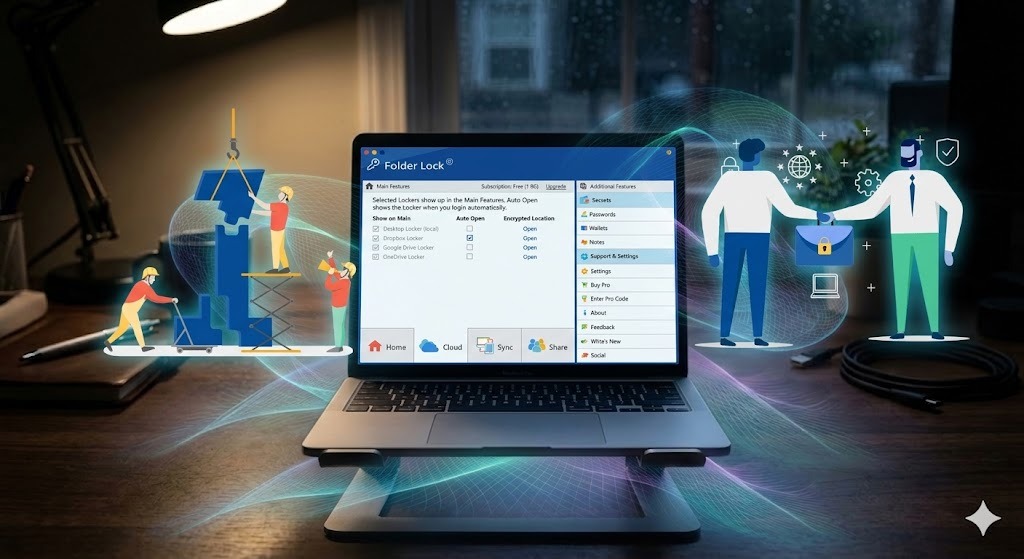
Cloud security usually includes multiple encryption stages. Encryption in transit protects data while it moves between your device and the service. Encryption at rest protects stored data on the provider's infrastructure. Both are important, but neither automatically means only you possess the decryption keys.
Client-side encryption adds a different trust model: the file is encrypted before the cloud service handles the readable content. That can reduce provider-side visibility, but it also moves more responsibility to you or your organization for key management, recovery, authorized sharing and endpoint security.
Protected while data crosses the network.
Protected while stored on infrastructure.
Permissions answer who the service should let in. Encryption answers what someone can read if they obtain the stored content or the wrong party gains access. A mature file-security plan uses both: least-privilege sharing for everyday work and stronger encryption for data whose sensitivity justifies extra operational friction.
“Zero-knowledge” is commonly used for services designed so the provider does not possess the key needed to decrypt user content. The practical security benefit depends on the entire implementation: how keys are derived, where they are stored, how recovery works, what metadata remains visible, and whether the endpoint is trustworthy.
Google Workspace also offers client-side encryption capabilities for eligible organizational editions and configurations, allowing customer-controlled key management outside Google's ordinary service encryption. That is an enterprise control, not the same thing as the consumer Drive file-lock button.

This is an editorial screening tool, not a formal security assessment.
Answer three questions to get a method recommendation.
1. Does the recipient need to edit?
2. Is the content highly confidential?
3. Is this a final version?
The direct Drive file lock is a user-facing content restriction. Google's release documentation says there is no admin on/off control for that specific feature. Workspace administrators instead govern the larger security environment: sharing policies, shared-drive roles, trust rules, data loss prevention, labels, client-side encryption configuration, audit access and retention-related controls.
For an individual document, use the file's Lock command when available. For organization-wide policy, do not try to use one manual lock as a substitute for admin controls. Define who may share externally, which groups can access sensitive areas, when downloads are blocked, and which content should be detected or restricted by data loss prevention rules.
Workspace editions with the appropriate reporting and investigation capabilities can give administrators Drive activity data for events such as sharing and access changes. The useful workflow is to combine logs with ownership and group reviews, rather than treating the absence of an alert as proof that a file was never exposed.
DLP policies can detect sensitive content and apply controls at scale in supported Workspace editions. That makes DLP a better fit than manual locking when the question is, “How do we stop hundreds of users from accidentally sharing regulated data?”

Offboarding should remove the departing account from direct shares, security groups and shared drives, then transfer or preserve ownership according to company policy. Locking a file is not an offboarding control because a locked file can remain visible to someone who still has access.
Open Share, remove the user or group, and check whether they still inherit access from a folder or shared drive. If the file had a broadly shareable link, change General access to a narrower setting and issue a new controlled path if needed.
A Drive lock can support document-control procedures, but it does not make a workflow HIPAA- or GDPR-compliant by itself. Compliance depends on the organization, data category, contractual terms, risk analysis, access governance, retention, incident response and the specific Workspace services and editions in use.
For HIPAA-regulated ePHI, U.S. HHS guidance explains that covered entities and business associates using a cloud provider generally need an appropriate business associate agreement and must still perform risk analysis and meet the HIPAA Rules. For GDPR, organizations must evaluate lawful processing, data protection obligations and their vendor arrangements rather than relying on a single product setting.
This page remains Google Drive-focused. The matrix below is only a high-level architecture check so you can see why a Drive file lock should not be confused with encryption or sharing controls available in other ecosystems.
| Security layer | Google Drive | OneDrive | Dropbox | iCloud |
|---|---|---|---|---|
| Provider-managed encryption in transit / at rest | Yes | Yes | Yes | Yes |
| Granular sharing roles | Yes | Yes | Yes | Varies |
| Native content lock comparable to Drive's lock | Drive Lock | Different model | Different model | Different model |
| Customer / client-side key options | Workspace CSE in eligible setups | Edition-dependent controls | Product-dependent controls | Advanced Data Protection model |
| Password on an individual ordinary cloud file | Not via Drive Lock | Sharing feature-dependent | Sharing feature-dependent | Sharing feature-dependent |
When comparing services that advertise zero-knowledge or client-held-key protection, focus on architecture rather than the label. Ask who creates the key, whether the provider ever receives it, how sharing works, what happens during password recovery, which metadata stays visible, and whether mobile/desktop clients are independently trustworthy. A service can be excellent for private storage while still being a poor fit for live collaborative editing.

| Approach | Cloud sync | Live Docs editing | Password/key layer | Best use |
|---|---|---|---|---|
| Folder Lock 10 | Google Drive Locker | No native plaintext co-editing inside encrypted locker | Yes | Windows users who want encrypted cloud-synced files |
| Encrypted archive tool | Upload the resulting archive | No | Yes | Occasional exchange and cold storage |
| Workspace client-side encryption | Integrated in eligible Workspace environments | Designed for supported Workspace workflows | Organization-controlled key service | Managed enterprises with compliance needs |
| Native Drive Lock | Native | Paused while locked | No | Editing freeze, approvals, final versions |
| Verdict | Choose by threat model. Editing control and cryptographic confidentiality are separate requirements. | |||
The current official comparison lists a 1 GB locker and sync on two devices, plus access to selected Folder Lock features. It is enough to test whether the encrypted-locker workflow fits you.
Download free version →The current official store lists Folder Lock 10 Pro at $39.95/year, with unlimited locker size, sync on five devices, encrypted sharing and additional protection features.
View full version pricing →Is it worth it? If you only need Drive's native editing lock, no. If you routinely sync confidential files from Windows and want an encryption layer before cloud storage, the paid version can be justified by larger lockers, more devices and sharing features.
Version history, trash/recovery, content locking and encryption protect against different failure modes. Versioning can help you roll back accidental changes. A content lock can reduce new changes while the lock is active. Encryption can keep a stored copy unreadable without a key. A separate backup protects against account loss, destructive synchronization and some operational mistakes.
If you encrypt before upload, version history may contain multiple encrypted versions rather than readable historical documents. Test how your chosen encryption workflow interacts with recovery before you use it for the only copy of important data.
A long-term user highlights reliability and the usefulness of portable lockers for taking protected data to another computer.
Review summary: Sam, April 2026
One reviewer focuses on the straightforward interface and practical day-to-day protection rather than a complicated setup.
Review summary: Erhan, March 2026
A customer praises the encryption workflow and also describes a positive support experience after a billing mistake was resolved.
Review summary: Cesar Macher, January 2026
A long-time Folder Lock 7 user describes an easy Windows migration and values the product's layered security controls and support assistance.
Review summary: Ron J, January 2026
These are editorial summaries of reviews currently published on the official Folder Lock product page, not verbatim quotations.
Use: Drive Lock.
Why: simplest content freeze.
Folder Lock fit: unnecessary unless confidentiality also requires encryption.
Use: Viewer access.
Why: long-term permission boundary.
Alternative: add download restrictions where appropriate.
Use: pre-upload encryption.
Why: Drive Lock has no file password.
Folder Lock fit: strong for Windows users wanting encrypted Drive sync.
Use: normal Drive permissions while work is active.
Why: encryption archives add workflow friction.
Alternative: lock only the finalized milestone.
Use: a local access-control layer such as Cloud Secure.
Why: it targets the synced folder on the device while allowing background synchronization to continue.
Alternative: separate Windows user accounts and strong device locking.
These tools are developed by NewSoftwares.net, the same team behind Folder Lock. They solve adjacent problems and are listed here for context, not as substitutes for Drive's native file lock.
Use a Drive content lock when the problem is editing. Use permission changes when the problem is access. Use client-side encryption when the problem is readable content in cloud storage.
The native Lock command is the closest match because it pauses edits, comments and suggestions without forcing you to rebuild the share list. Unlock it when collaboration resumes.
Not with Drive's native Lock. A separate password requires an encrypted container/archive or another client-side encryption workflow.
Folder security is mainly handled with sharing and limited-access controls. The Drive content Lock described here applies to files rather than serving as a folder password.
Use named-person sharing, remove stale groups and guests, apply the least-powerful role, audit inherited access, require strong account authentication, and use encryption for data whose confidentiality warrants it.
Create the encrypted copy locally, verify you can decrypt it, place only ciphertext in the sync location, retain recovery information separately, and test the full restore path before relying on it.
Separate “who may open the share” from “who can read the stored content.” Use strict sharing for the first question and client-side encryption for the second when your threat model requires both.
Avoid broad link defaults, review General access before sending a link, use organization policies where available, and run periodic audits for external users and public links.
Think in layers: account security, least-privilege sharing, content lock for final states, download restrictions where useful, audit/recovery, and encryption appropriate to the sensitivity of the file.
On Windows, Cloud Secure can place a second password boundary around the locally synced Google Drive folder, which is useful when the computer itself is shared. That does not add a password to the cloud file, change Drive sharing, or prove the file contents are encrypted. On mobile, Cloud Secure's separate apps use a vault-style feature set rather than the same desktop folder-lock workflow.
Your Google Account sign-in protects account access. Google Drive does not add a separate master password to ordinary Drive storage. For a second cryptographic boundary, encrypt selected files before sync.
If a legitimate download is blocked, first check whether the owner disabled download for viewers/commenters, whether a Workspace administrator applied a policy, or whether the file is restricted by organizational security controls. Ask the owner or admin rather than trying to bypass the restriction.
If your real goal is “stop people changing this finalized Google Drive file,” use Drive's native Lock command. It is simpler than changing every editor role and it communicates that the file is temporarily frozen for review or final use.
If your goal is “people should not see this file,” change sharing. If your goal is “viewers should not easily download or copy this,” use the relevant Viewer/Commenter restrictions. If your goal is “the cloud copy should be unreadable without a separate key,” add client-side encryption before upload.
For Windows users who want that last layer while still syncing through Google Drive, Folder Lock 10 is our practical recommendation because it provides a Google Drive Locker specifically for encrypted cloud synchronization. It adds complexity, so use it only where the confidentiality benefit is worth the extra workflow.